
How to Automate Trading Signals on Mac Using MT4? Beginner Guide
Automating your trading signals on a Mac can save time, reduce emotional mistakes, and help you trade more efficiently. If you’re using MetaTrader 4 and want to copy Forex signals from Telegram to Mac automatically, this beginner-friendly guide will show you exactly how to automate trading signals on Mac step by step.
Unlike Windows users, Mac traders require a slightly different setup to run MT4 signal copiers smoothly. In this guide, we’ll walk you through everything- from setting up an MT4 copier to integrating the Telegram Signal Copier with MT4.
By the end, you’ll learn how to execute trades on Mac automatically, even when your Mac is turned off.

Why Mac Users Need a Special Setup for MT4 Automation
Mac users require a special setup for MetaTrader 4 (MT4) automation because MT4 is natively designed for Windows, and it is not available on the Apple App Store.
So, to install and use MT4 on Mac, you might need to use Wine-based wrappers, Parallels, or other emulators, or change some security settings on a Mac.
Trying to install Windows-based trading software directly on a Mac often leads to:
- Missing DLL permissions
- AutoTrading errors
- Execution delays
- Compatibility issues with signal copiers
- Unstable 24/7 operation
That’s why a Windows VPS (Virtual Private Server) is required for stable automation. A VPS allows your Mac to remotely access a dedicated Windows environment where MT4 and your signal copier run smoothly and continuously.
In simple terms, your Mac becomes the control center, while the VPS handles the execution 24/7 without interruptions.
What You Need to Automate Telegram Signals on Mac
You need the MT4 platform, a signal copier, and some other settings. On Mac, the setup is slightly different compared to Windows. Before you automate trading signals on Mac, you need to prepare everything in advance to ensure smooth installation and stable automated trade execution.
Here’s exactly what you need:
Windows VPS (Virtual Private Server)
A Windows VPS is essential for running MT4 and your Telegram signal copier 24/7. Since MetaTrader 4 runs more smoothly in a Windows environment, Mac users typically connect to a Windows VPS remotely and run everything there, including MT4 and the signal copier.
Why it’s necessary for Mac users:
- MT4 is built primarily for Windows
- Ensures 24/7 automated trading
- Avoids compatibility and software conflicts
- Provides faster trade execution with lower latency
You’ll access the VPS from your Mac using Remote Desktop and run all trading software inside it, such as:
MetaTrader 4 (MT4)
MetaTrader 4 (MT4) is the platform where your trades will be executed. It supports automated trading using Expert Advisors (EAs) and is compatible with most signal copier tools.
Telegram Signal Copier Software
Telegram Signal Copier is the tool that allows you to copy trades from Telegram channels directly to your MT4 account automatically. Make sure to choose a reliable copier that supports your broker and trading strategy.
Active Telegram Account
A Telegram account is required to receive signals. Make sure your account is verified and has access to the trading signals you plan to copy.
Trading Account (Live or Demo)
You need a trading account with a broker that supports MT4. Beginners can start with a demo account to practice without risking real money.
Stable Internet Connection
A stable internet connection ensures your VPS and MT4 platform remain connected at all times, which is crucial for executing trades without delays.
How to Automate Trading Signals from Telegram to MT4 on Mac
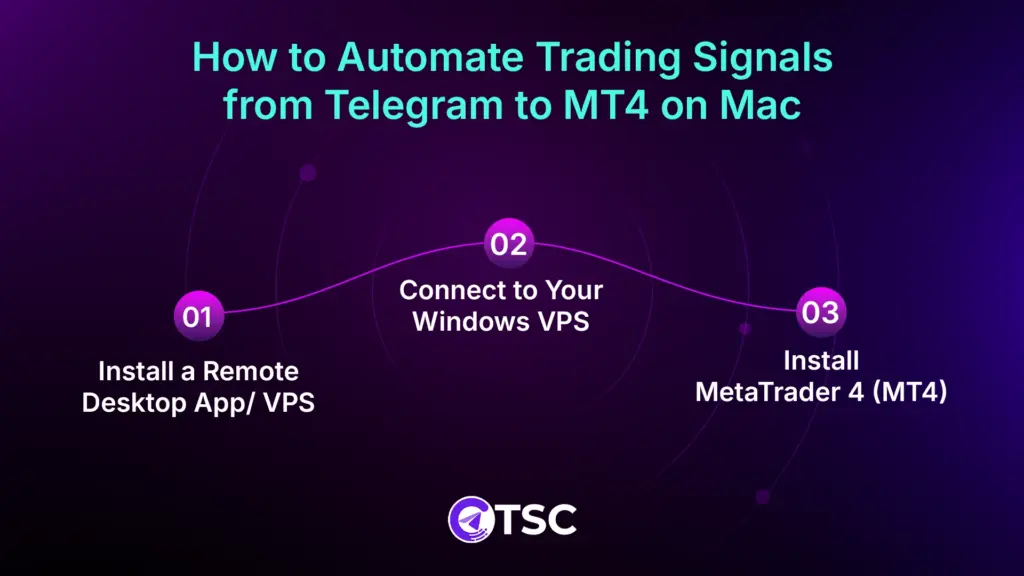
Automating trading signals to MT4 using a Mac requires a stable VPS(Virtual Private Server). Here is a complete step-by-step guide for the process.
Step 1: Install a Remote Desktop App/ VPS
- Open your App Store on Mac.
- Search for a Windows app (like Microsoft Remote Desktop).
- Install it and open the app.
This allows your Mac to connect to your Windows VPS.
Step 2: Connect to Your Windows VPS
- Click Add PC in the app.
- Enter your VPS credentials.
- Double-click your VPS profile to connect. You will now see the Windows desktop inside your Mac.
You will now see the Windows desktop environment.
Step 3: Install MetaTrader 4 (MT4)
Inside the VPS:
- Download MT4 from your broker’s website.
- Install it normally.
- Log in using your trading account credentials (Live or Demo).
Make sure:
- Your account is active
- AutoTrading is enabled
- Your broker supports automated trading
Step 4: Download and Install Telegram Signal Copier
- Inside your VPS, open a browser and go to Telegram Signal Copier’s Official website.
- Log in to your TSC portal.
- From the dashboard, navigate to My Download.
- Choose the installation file that fits your Windows VPS setup. Then download it.
- Now unzip the downloaded file and then double-click on the Telegram Signal Copier app to begin installation.
- When the Windows security pop-up appears saying “Windows protected your PC”, click on Run anyway to proceed.
- Now select the language and click OK.
- Next, the Setup – TSC’s latest version window will open. Click Next to continue. Under “Select Additional Tasks”, tick the box Create a desktop shortcut (recommended), then click Next.
- On the “Ready to Install” screen, click Install to begin the installation.
- Wait while the system installs the files. This may take a few moments.
- Once installation is complete, the TSC application will open automatically.
- Open the Telegram Signal Copier (TSC) app.
- Log in to Telegram with your country code and Telegram number.
- And connect Telegram by verifying the code sent to your Telegram account.
- Your Telegram is connected to TSC, and you can see all the Telegram channels here on TSC.
Step 6: Install the Expert Advisor (EA) in MT4
To link MT4 with the copier:
- Open MT4.
- Click File → Open Data Folder.
- Go to MQL4 → Experts.
- Locate the TSC EA file.
- Double-click on it & it will be installed
- Restart MT4.
Then:
- Drag the TSC EA onto your trading chart
- Enable AutoTrading
- Allow DLL imports (if required)
You should see a smiley face on the chart — this means automation is active.
Step 7: Configure Signal Settings
Inside Telegram Signal Copier (TSC):
- Input your MetaTrader 4 account
- Now, double-click on a Telegram that you want to copy signal from
- Set the signal keywords, enable AI, and read image options for smooth copying.
For beginners, always test with a demo account first.
Step 8: Start Copying Signals Automatically
Once everything is configured:
- Keep MT4 running inside the VPS
- Keep AutoTrading enabled on MT4
- Customize the EA according to your trading preferences.
- Keep the MT4 copier open
- Keep the VPS active
Now, whenever a signal is posted in your selected Telegram channel, it will be executed automatically in MT4.
You can close your Mac — the VPS continues running 24/7.
Final Thoughts
Automating trading signals on Mac with MT4 might seem complex at first, but using a Windows VPS and Telegram Signal Copier simplifies the process. This setup ensures that your trades execute accurately, consistently, and without emotional interference—even while you focus on other tasks or your Mac is powered down.
By following this guide, you can automate trading signals on Mac, reduce manual effort, and improve your trading efficiency.
FAQs

Yes. Mac users can fully automate trading signals by running MT4 and the signal copier inside a Windows VPS.
Yes, you can use Telegram Signal Copier on a macOS if you use a VPS.
Yes, by configuring some basic settings inside the Mac, you can easily run and use MT4 on Mac and automate Telegram signals.